Browsing & managing
The browser is built from three panes. The header shows a breadcrumb — scope: X / secret: Y — so you always know where you are.
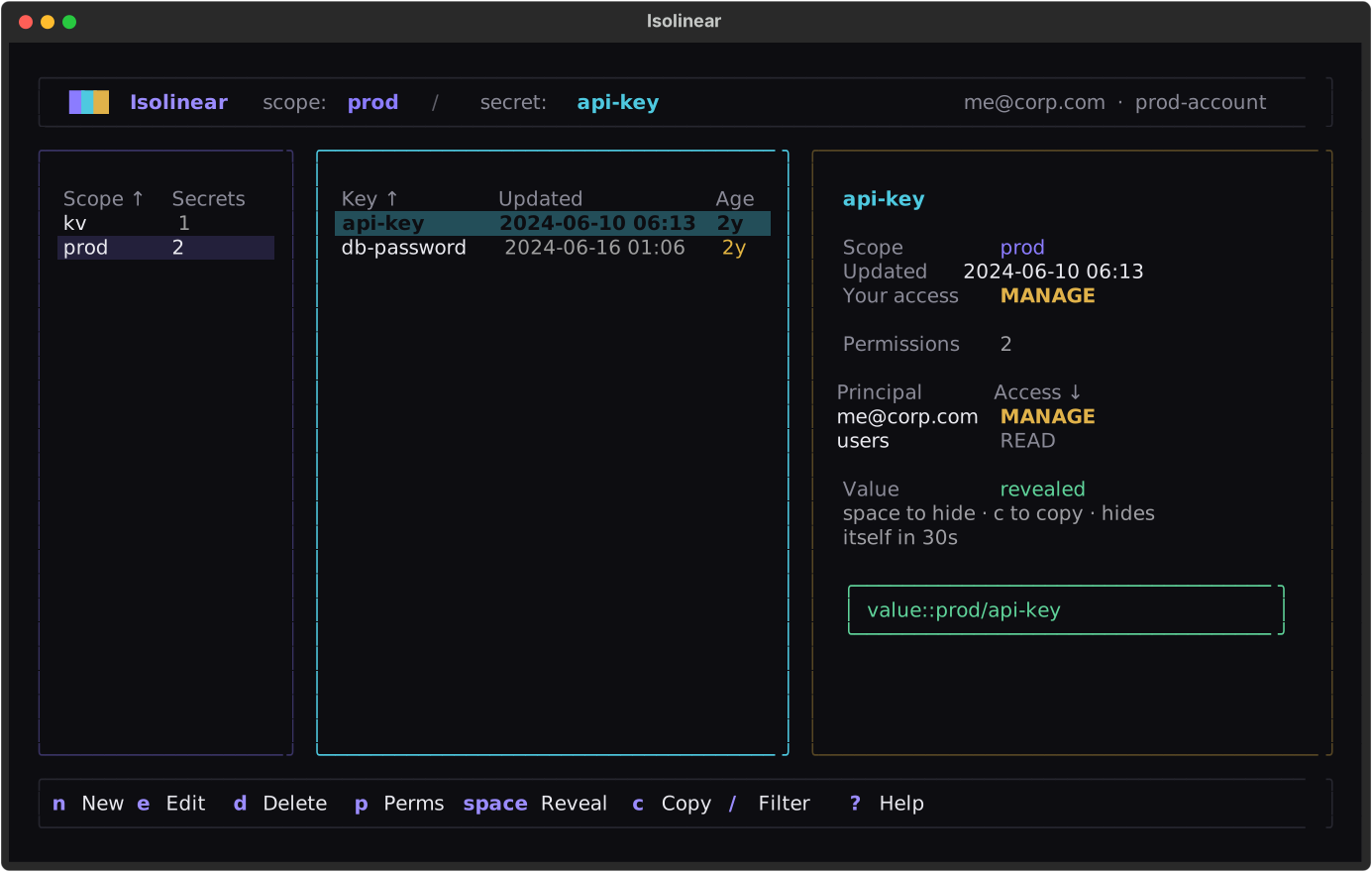
| Pane | Shows |
|---|---|
| Left — scopes | Each scope's name and secret count. |
| Middle — secrets | The keys in the selected scope, with last-updated and a relative age (amber when overdue for rotation). |
| Right — detail | Identity, your access, the scope's full ACL list, and the revealed value card. |
On startup, Isolinear pre-loads and caches scopes, secrets, and ACLs — concurrently, so even workspaces with hundreds of scopes are ready in seconds.
Navigating
- Move within a pane with Up Down or J K.
- Move between panes with Left Right / H L, or Tab.
- Jump to the top or bottom with G / Shift+G.
- Selecting a scope drills into its secrets; Enter on a secret reveals it.
See the Keyboard page for the complete key table.
Sorting and filtering
Every table is sortable: press S to advance to the next column (ascending), Shift+S to reverse the direction, or click a column header; a ↑ / ↓ marks the active column.
Press / to fuzzy-filter the focused pane. Up Down move the selection while you type, Enter keeps the filter (a ⌕ query n/m chip above the table shows it's active), and Esc clears it.
Searching everywhere
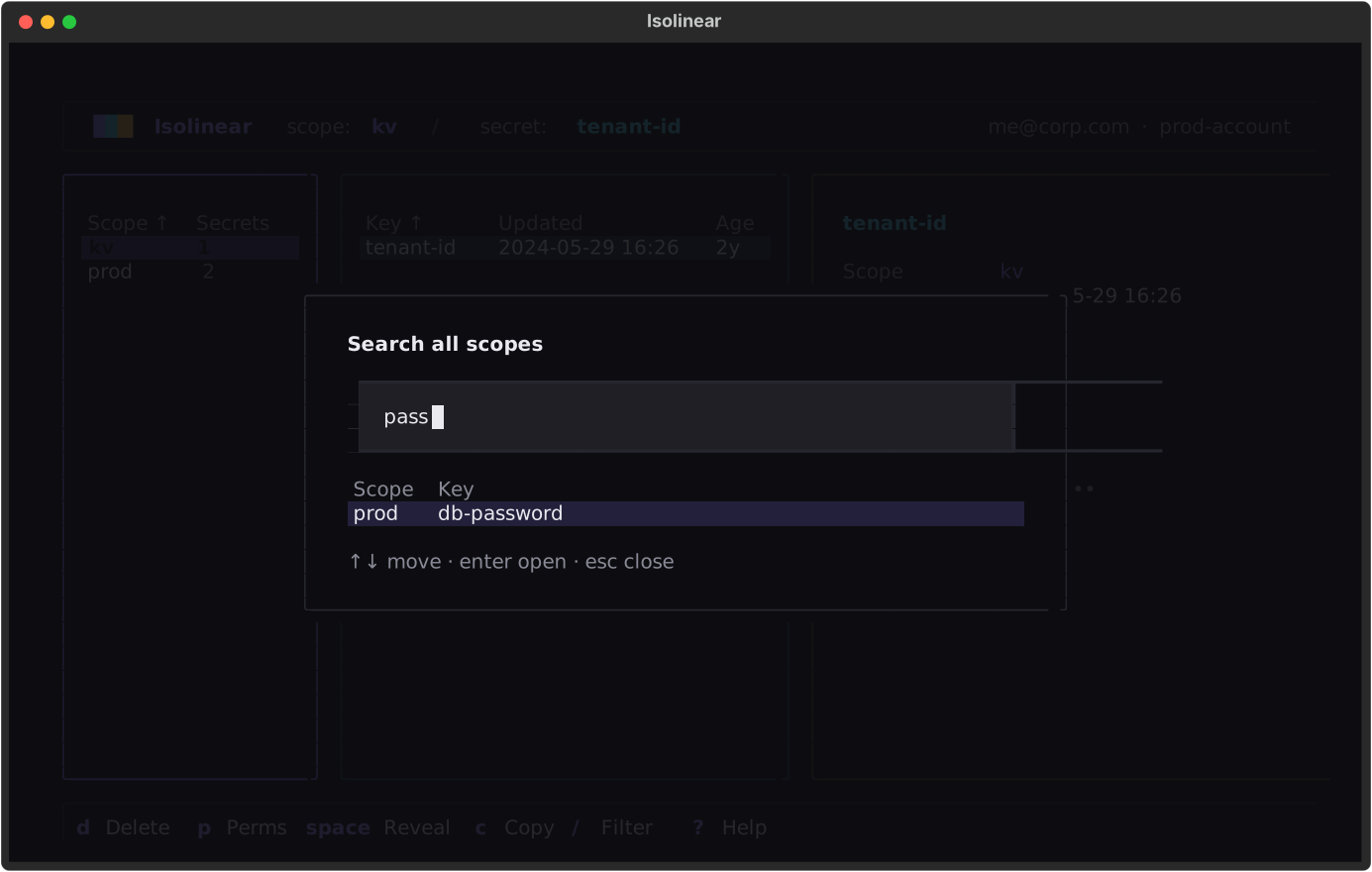
Press Ctrl+F to search across every scope at once — fuzzy-matched on scope/key, served instantly from the warmed cache. Enter jumps the browser straight to the secret.
Revealing and copying values
Reveal a value with Space (or Enter) or copy it with C. Revealing shows the value in a green "live" card in the detail pane, and the value hides itself after 30 seconds.
Press Shift+C to copy a code reference instead of the value — dbutils.secrets.get(...), the {{secrets/scope/key}} Spark-conf form, or the CLI command — for pasting into notebooks and job specs.
Values are fetched lazily
Secret values are read on demand — only when you reveal or copy them — and are never bulk-loaded. Nothing about a value leaves Databricks until you ask for it. Copying places the value on your system clipboard; clear it if you share your machine. The Forget revealed values palette command purges every cached value from memory.
Creating, editing, and deleting
- New secret — N
- Edit secret — E
- Move / copy / rename secret — M
- Delete secret — D
- Undo secret delete or move — U
- New scope — Shift+N
- Delete scope — D on a selected scope
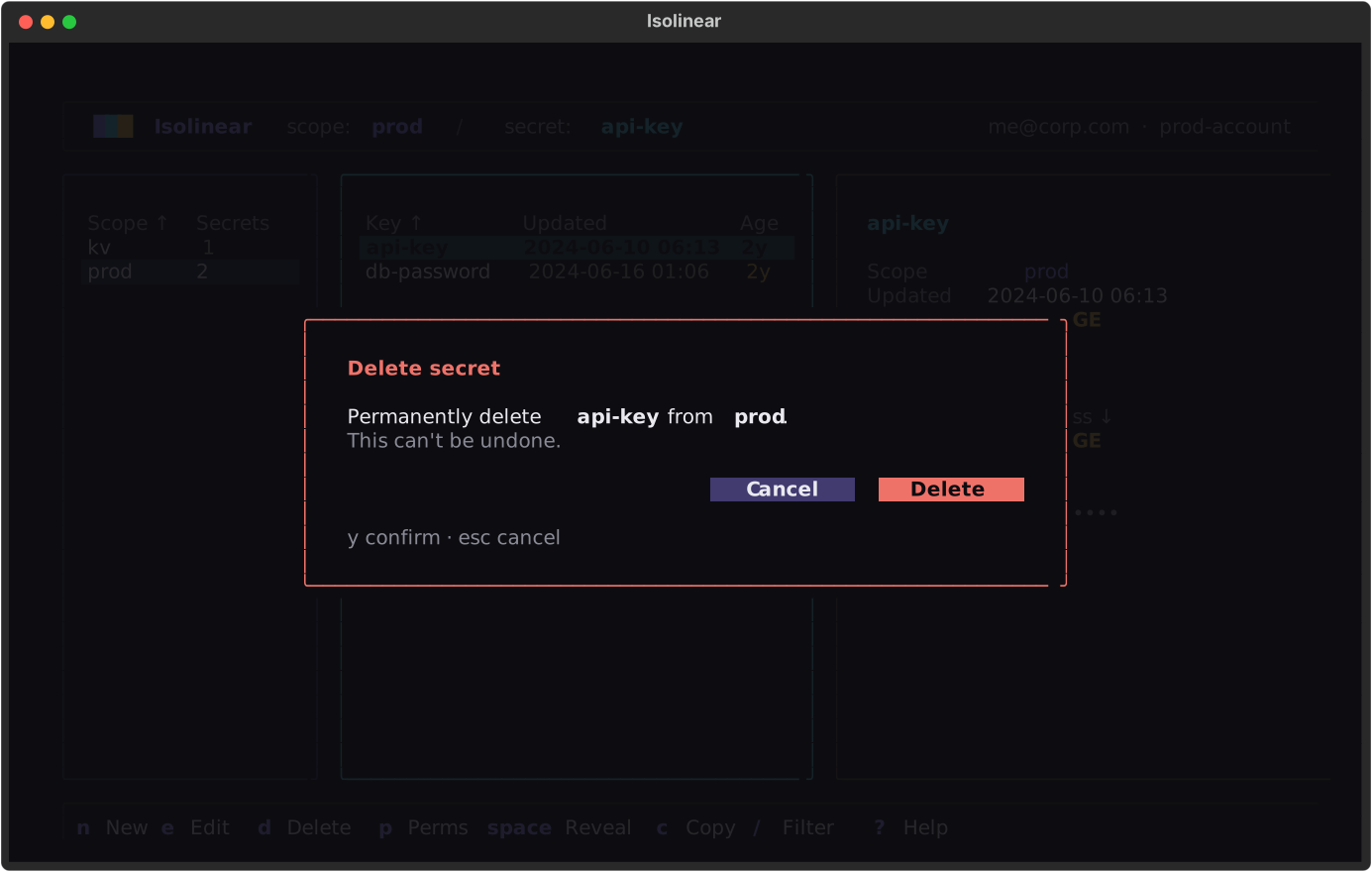
Destructive actions show a confirmation dialog — confirming always takes a deliberate Y — and a deleted (or moved-away) secret can be restored with U.
Multiline values come from a file
The secret form's value field is a single masked line, so PEM keys, certificates, and other multiline material go in via the file field: point it at ~/certs/key.pem and the file's content becomes the value.
The M dialog covers three operations in one: pick a target scope and key, and tick keep the original to copy instead of move. Renaming is just a move within the same scope.
Bulk import and export (.env)
From the command palette (Ctrl+P):
- Import .env file into scope — bulk-load every
KEY=VALUEpair from a.envfile into the selected scope. Comments,exportprefixes, and quoting are handled, and the confirm dialog states how many existing keys would be overwritten. - Copy scope as .env (keys only) — a redacted template (
KEY=lines) for seeding another scope or a project's.env.example. - Copy scope as .env (with values) — behind a confirm; goes to the clipboard only, never to disk.
Who has access (principal lookup)
The Who has access palette command is the inverse of the authorization overview: type any principal — a user, group, or service principal — and see every scope they can touch, highest privilege first. Enter jumps to the scope. The go-to view for access reviews and offboarding checks.
Azure Key Vault-backed scopes are read-only
Secrets in Key Vault-backed scopes are managed in Azure, so create / edit / delete are disabled for them — revealing, copying, and ACLs still work.
Managing permissions (ACLs)
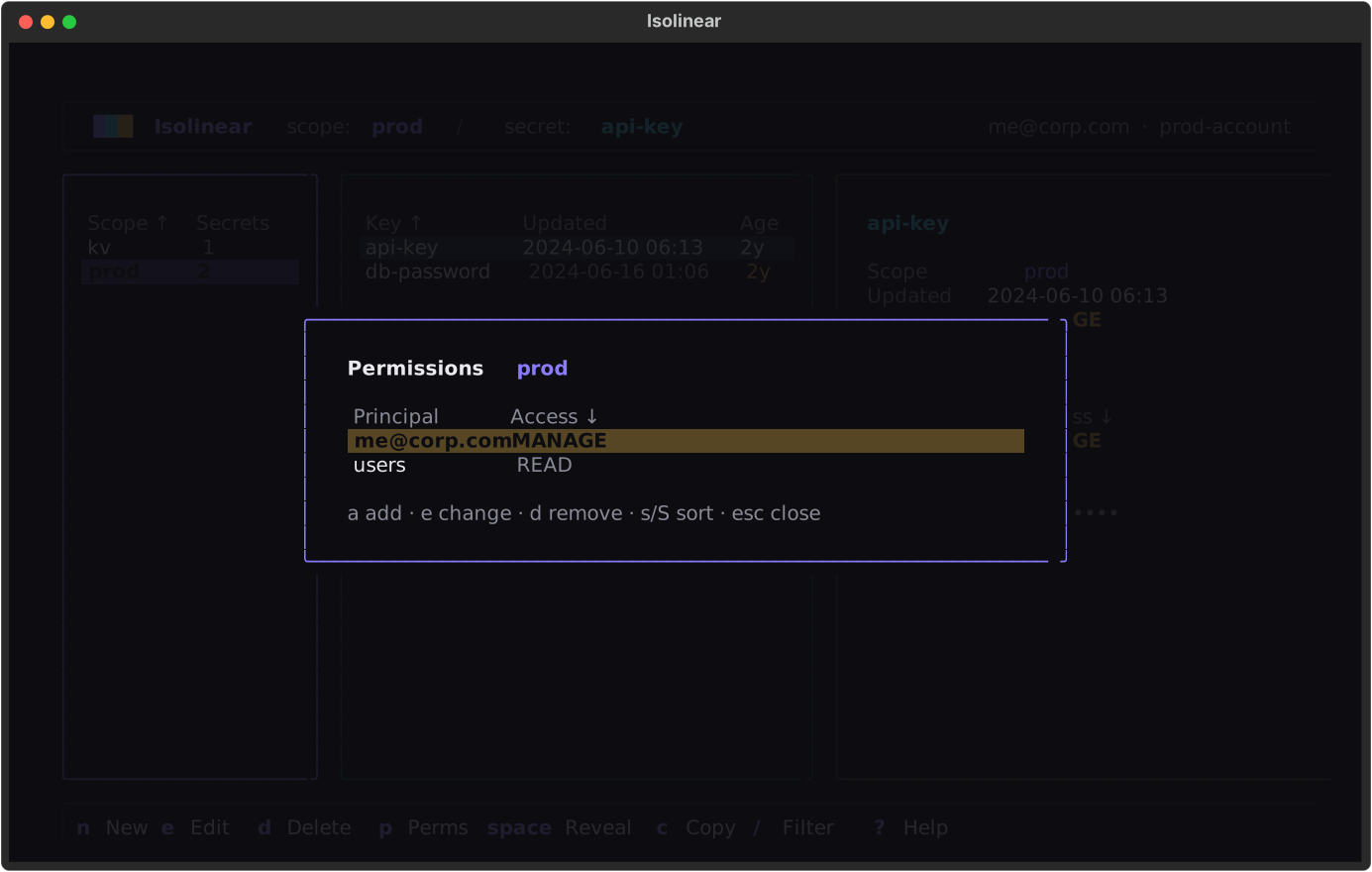
Press P to manage a scope's permissions. From the modal you can grant, change, or remove READ, WRITE, or MANAGE for a principal — a user, group, or service principal. Removing a grant asks for confirmation, and warns when the grant you're revoking is your own.
Privilege levels are colour-coded
Permission levels are coloured by privilege: READ muted, WRITE cyan, MANAGE amber and bold — so the strongest grants stand out at a glance.
Authorization overview
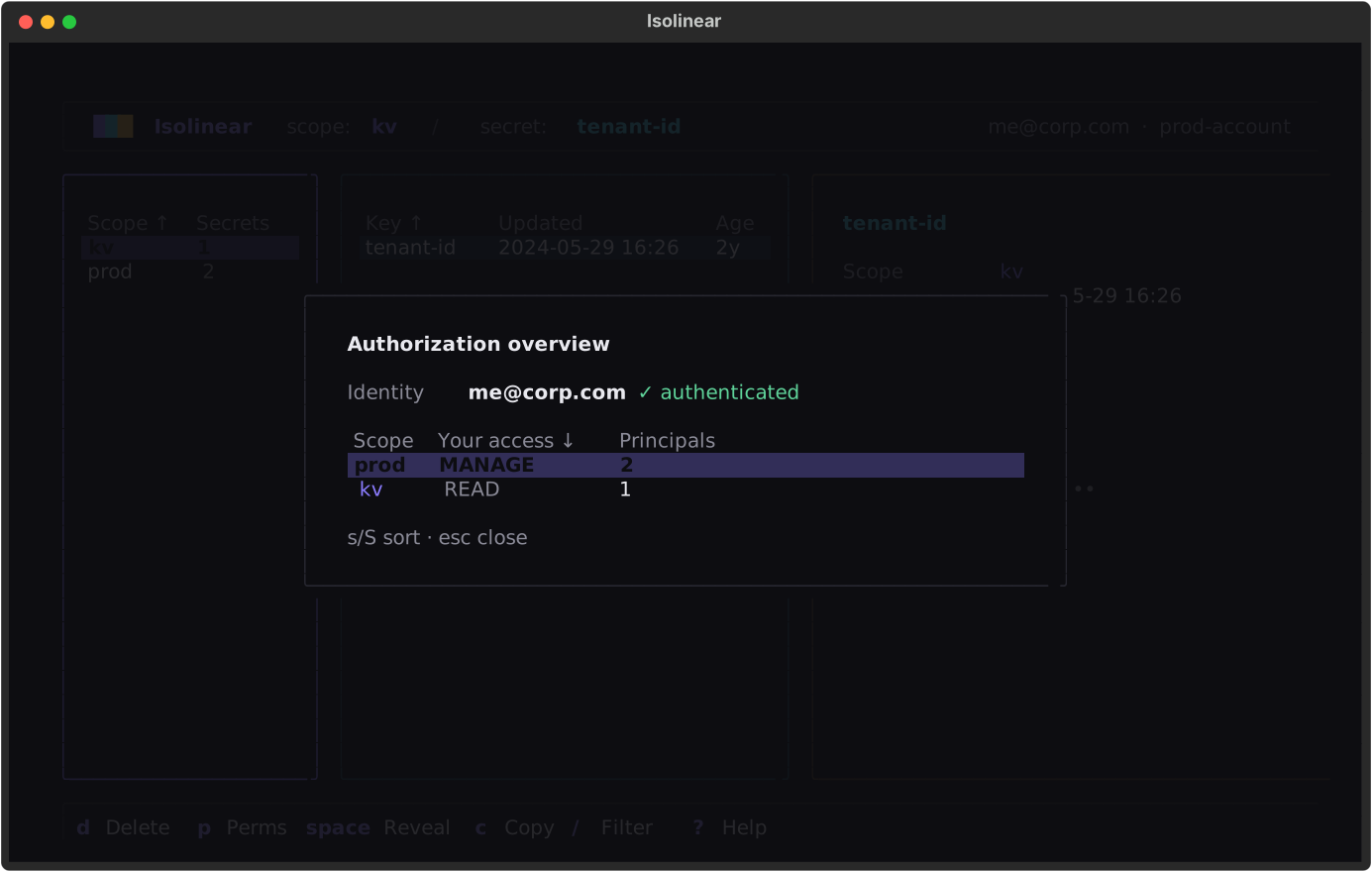
Press A for a modal listing every scope with your effective permission and the number of principals, sorted by privilege. It's a fast "what can I touch" view across the whole workspace.
Stale-secret audit
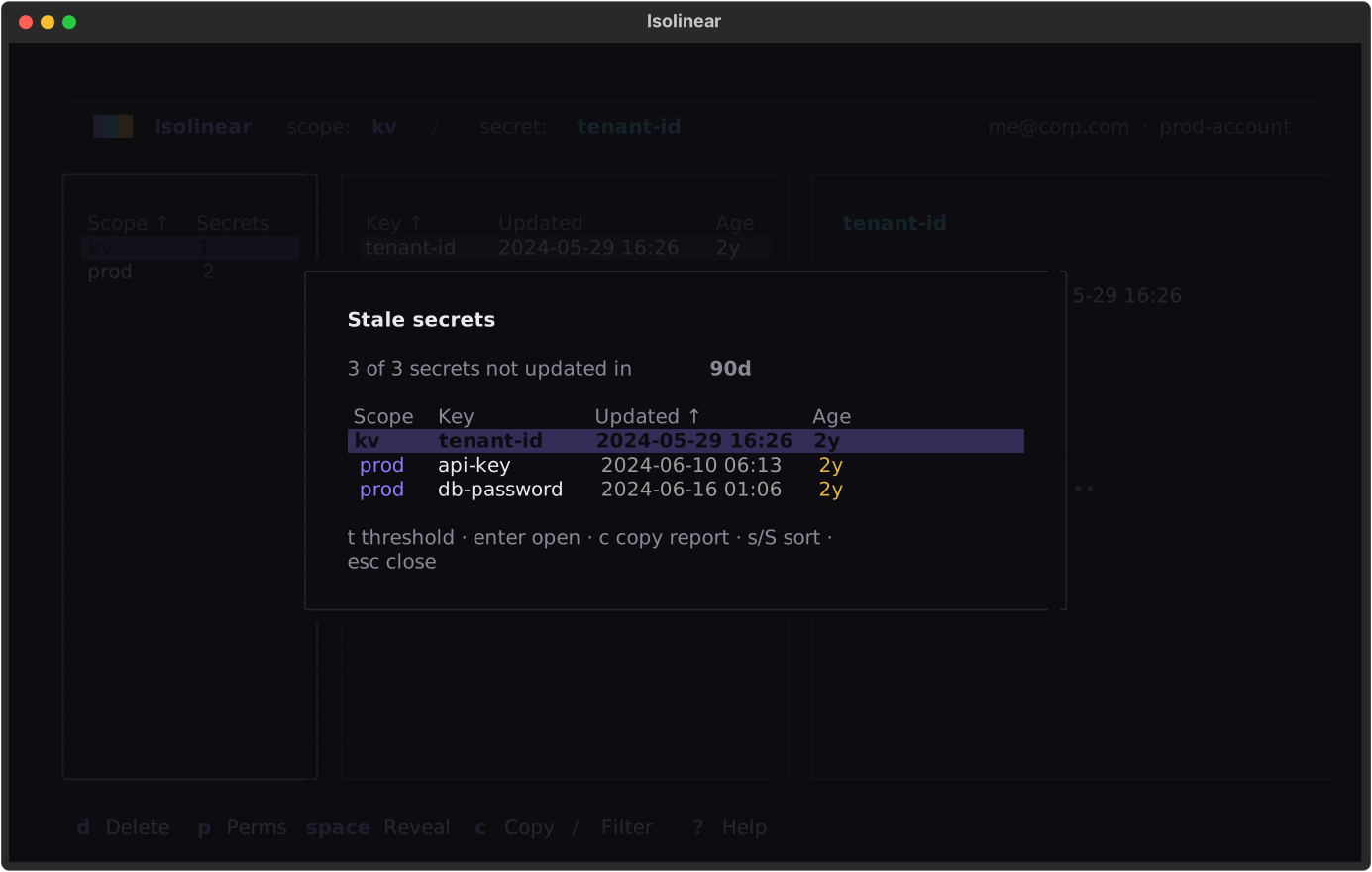
Press Shift+A for a rotation report: every secret not updated within the threshold, oldest first. T cycles the window through 30 / 90 / 180 / 365 days, Enter jumps to the secret in the browser, and C copies the table as markdown for a rotation ticket. Pure metadata — no values are read.
Refreshing
- Refresh the selected scope with R.
- Refresh the whole workspace with Shift+R.